This SOP is applicable if the following conditions are met:
1. The customer has more than one location, or if at the moment has one location, but the customer does plan to add more in the future. The number of cameras can be any amount, from one per location to thousands per location.
2. You do not provide security guard monitoring service or plan to provide such service in the future to this customer.
3. Customer does not plan to become a reseller of our services in the future.
4. Customers can have a mix of equipment: different brands of IP cameras, NVRs, and other H.264 video streaming devices.
5. Customer required to have a guarantee that his cameras and users are fully separated from other customers.
Step 1: Create a new customer
Log in to the
Admin portal↗️ using your main Integrator account or an Operational Manager account. Once logged in, verify that
“Integrator” appears next to your name (as shown in the interface). If it shows
“Customer”, you are logged in with the wrong user level.
Now go to the Customers menu and click on the
Add button to start creating new customers. For step-by-step instructions, please visit this
page↗️
Step 2: Integrate customer cameras
Depending on the type of equipment that the customer has, different integration procedures have to be followed. For step-by-step instructions on how to integrate P&P-compatible cameras from the supported manufacturers, follow these links:
If the camera is not from the P&P supported list but is ONVIF-compliant, you can add such cameras through the Gateway bridge. For instructions, please visit this page↗️.
Alternatively, you can add any ONVIF-compliant camera using the ONVIF option; this method will require you to configure port forwarding rules on the router. For instructions, please visit this article↗️.
And the last resort option for non-ONVIF-compliant devices is to use our Generic option, which requires just the RTSP stream URL from the device, but does not allow you to control the device from the Admin portal and/or activate server-side analytics on such streams.
Important: When adding cameras, include a unique identifier in the camera name that would be unique for every customer site. Having this identifier will allow you to quickly sort the camera list to show cameras only from a specific site rather than all cameras from all sites. You can add this identifier anywhere in the camera name, and it can be anything that would allow your team to quickly identify customer sites.
Step 3: Configure event detection
Decide on what type of detector/detectors will be the most appropriate for every camera, and if server-side analytics is needed. For ONVIF-compliant detectors, go to the Analytics tab of the camera and adjust area, lines, sensitivity, or any other relevant parameters for the camera to detect events. Test the new configuration for a few hours/days, depending on the activity, and adjust if needed to minimize the number of false-positive events while ensuring that the camera is not missing any events.
It is advised to set the camera slightly too sensitive rather than not sensitive enough to ensure that no important events are missed, but going too sensitive is also not advisable, as this will create a continuous event and will make it harder to identify single events from the timeline.
To filter out false events, server-side analytics can be enabled. For guidance on server-side analytics, please visit this
page↗️. For more information on how to optimize image parameters, please visit this
article↗️.
Step 4: Add additional Users
Create as many users as needed. You can create multiple users who will have access to a single location or to multiple locations. All users can be created from the start of service, or new users can be added to the system as the customer expands.
To learn how to create users, please visit this
page↗️
Step 5: Create Roles
To provide a controlled level of access to different users, Roles have to be created. An unlimited number of roles can be created to provide the required level of control over access to the video streams.
Each user can be assigned to multiple roles, and each role can be assigned to multiple users.
Usually, it is a good idea to create a separate role for every location. This way, it becomes easy to provide access to cameras from that location to a group of users and to create users with access to multiple locations.
To learn more about roles, please visit this
page↗️
Step 6: Create Alerts
To fully utilize the power of the cloud, you can create sensor alerts. To learn more about different alerts and how to set them up, please visit this
page↗️.
Step 7: Create layouts and layout categories
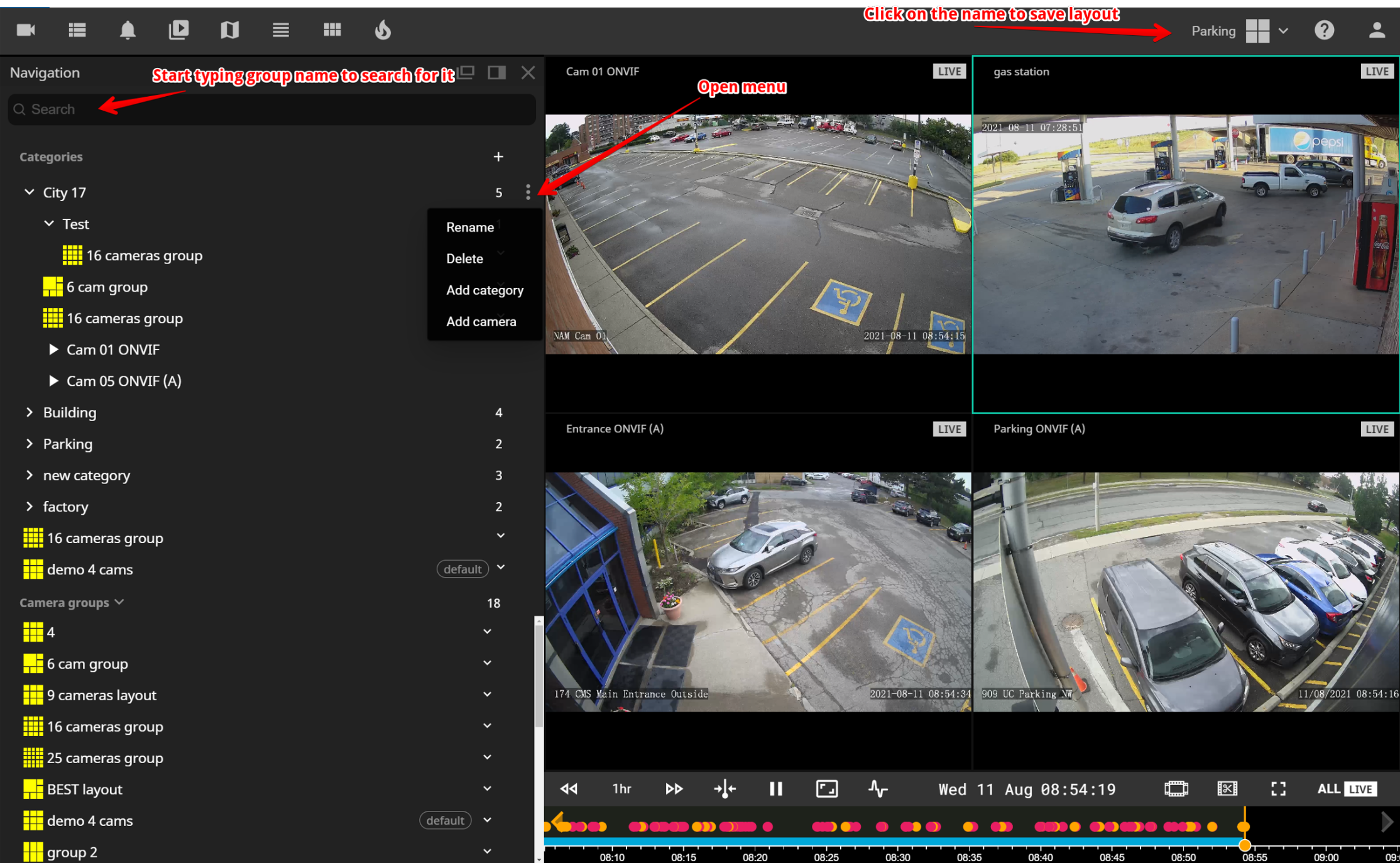
To simplify the search process for guards and users, Navigation layouts and categories can be created. Any size layout can be created, but not every computer and/or internet connection will be able to adequately support layouts with multiple cameras. In general, layouts with up to 9 cameras can be opened on almost any device without significant lag or issues. To view more cameras at once, a dedicated graphics card and high-speed internet connection are required.
First, select the layout design with the desired number of camera cells and their layout, next fill in cameras into the cells of the layout. You can either fill every cell or just some. Create as many layouts as needed to accommodate all cameras from all locations. You can create either a layout with cameras from a single location only or mix and match as needed, according to your monitoring needs.
After all desired layouts have been created, they can be reopened from the Navigation menu. To simplify the search process in the Navigation menu, Layouts can be grouped into categories. You can create categories and sub-categories.
For example, the category can represent a region, and each sub-category can represent a specific customer site. To arrange layouts in the categories, first use the Add category menu option to create categories and/or sub-categories that you need. Next, drag and drop layouts into the categories. You can drag and drop layouts between categories or from the general list.
Step 8: Provide training to end-users
Even though we strive to make our system as intuitive as possible, some users might find it difficult to learn on their own how to use the video portal. Additionally, because there are lots of functions, most users won't spend time discovering all of the features, and thus will be spending more time than needed reviewing the archives or waiting for clips to download, simply because they are not aware of all the time-saving tools available in the video portal. We recommend doing a walk-through with every new customer, devoting most attention to the tools that would be most useful for each customer. To know what to focus attention on, you need to find out what each user is expecting from the system and how they plan on using it. So for example users that plan only to monitor cameras occasionally when they are out on a vacation, it would make sense to show how to use the mobile app↗️ and how to review footage when an alert email or push notification was received, but for the customer who will be mostly using the system for incident investigation, it would make more sense to focus on such features as a thumbnail grid↗️, menu events↗️, working with the timeline↗️, creating and downloading clips↗️.