Issue
There can be scenarios when the user is trying to update the motion detection settings on a UNIVIEW Camera but the settings are not getting saved through Admin Portal even if the camera is ONVIF protocol compliant. This is a very specific issue related to the Detection mode of the Camera.
Reason
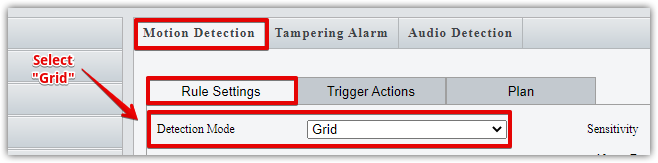
The reason could be the settings for the motion detection from Camera UI might be configured to detect motion in an "Area" instead of a "Grid" pattern and the sensitivity is set to a very low value. In this case, for Uniview Cameras specifically under the Events section of Camera, the user will see the Motion Detection. Under Rule Settings the Detection mode is set to Area rather than Grid.
Also, the Parameters in the camera WebUI can have different names as shown in the Admin Portal. For example, the Admin Portal and the Uniview WebUI have the same "Sensitivity" Parameter but the "Alarm ON" and "Alarm OFF" from Admin Portal corresponds to the "Suppress Alarm" and "Clear Alarm" in Uniview WebUI respectively. Additionally, the "Object Size" Parameter in Admin Portal is not available in the Uniview Camera.
The Fix
The "Area" method of detection is not ONVIF compliant and as such cannot be controlled using ONVIF commands as the "Grid" Mode can. On Uniview cameras each mode has its own configuration file and the camera will use the mode which is set through the Web UI thus when the Admin portal is connecting to the camera the settings that our platform sees on the camera are correct since the Grid configuration file is matching the configuration in the Admin portal. This is the reason why even though all the settings are configured correctly from the Admin Portal side, the camera is sending unexpected events.
To fix this the User needs to log in to the Camera UI which can be done in multiple ways, either by going to the Troubleshooting tab in the Camera Settings and then Generating the Public URL for the camera or using the camera IP address and login in through direct link.
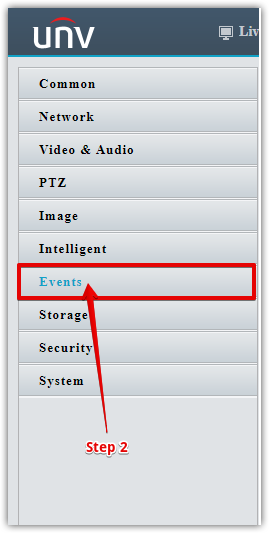
After logging into the Camera UI go to Setup, then go to the Events Tab on the left side. In the Motion Detection under Rule Setting select "Grid" for Detection Mode from a drop-down menu.
Step 1

Step 2
Step 3
Step 3
Make sure to press the Save button to apply the new configuration.
For more information on how to set up analytics, follow this Page↗️.
For how smart analytics works, follow this Page↗️.
For more information on how to optimize image parameters, please visit this Page↗️.